Multi-Factor Authentication
Multi Factor Authentication (MFA) for Northwestel Webmail
Multi Factor Authentication (MFA) adds an extra layer of protection to your Northwestel Webmail account by requiring a second verification step when you sign in. This helps keep your information secure, even if your password is compromised.
MFA is optional, but strongly recommended.
What is MFA?
MFA requires two things to verify your identity:
- Your password
- A second verification method, such as an authenticator app, secondary email address or via SMS.
Once MFA is enabled, you’ll sign in as usual with your password and then complete a quick verification step before accessing your inbox.
Note: Multifactor authentication only applies when logging in to Webmail. If your email is set up in a third‑party email application, it will not be affected.
How to enable MFA
Step 1: Choose how you'd like to enable MFA
Option A: Self serve
- Open your browser and enter https://webmail.northwestel.net/ in the address bar.

- Enter your username and password in the Username and Password fields, then click Sign In (Note: For email addresses with the @northwestel.net domain, only the login ID is required. For all other domains, the full email address must be entered.)

- In the Convergence panel (located in the lower‑left corner of the screen), select Options.

- If not already selected, go to the left-hand pane, expand Global, and select General.

- To enable or disable MFA, select or clear the appropriate checkbox. (Note: If this option doesn’t appear, clear your browser’s history, cookies, and cache, then log in again.)

- Click Save Preferences to apply your changes.

- Sign out of Webmail, then follow the MFA setup steps.

Option B: Contact us
Call our support team to have MFA (Multi‑Factor Authentication) activated on your account. You won’t be able to complete the MFA setup until this step is done.
2. Set up your Multi‑Factor Authentication
After MFA is activated, complete the setup by following the steps for the method you selected.
Option A: Authenticator App
Use a supported mobile authenticator app to generate time based onetime passcodes (OTP). based one time passcodes (OTP).
Supported apps include:
| Authenticator App | Android download | iOS download |
| Google Authenticator | Download | Download |
| Microsoft Authenticator | Download | Download |
| Oracle Mobile Authenticator (OMA) | Download | Download |
Open a browser and go to:
-
https://webmail.northwestel.net.
Enter your username and password in the Username and Password fields, then click Sign In.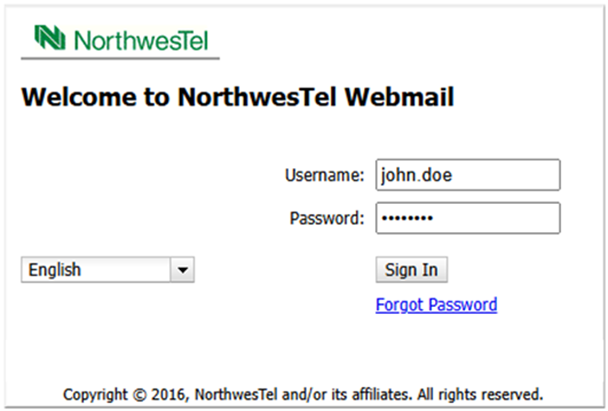
-
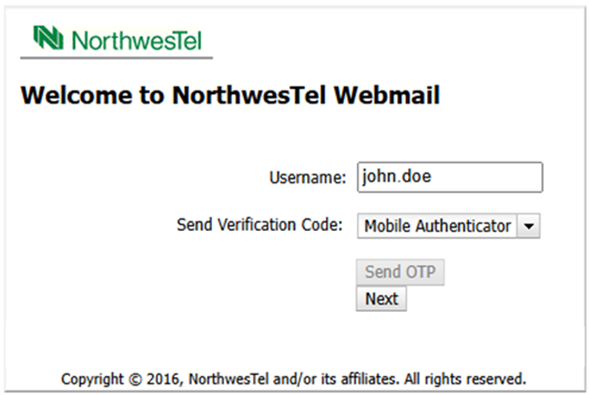
In the Send Verification Code drop‑down menu, select Mobile Authenticator, then click Next.
-
Select Register Mobile Authenticator.
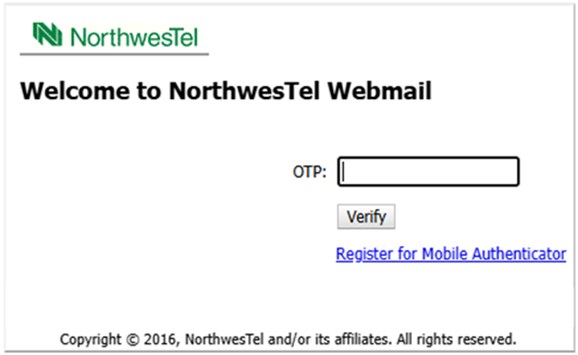
Note: This option will only appear if a mobile authenticator has not already been set up.
-
A Configure Mobile Application screen will appear with instructions for either automatic registration using a QR code or manual registration using a key.
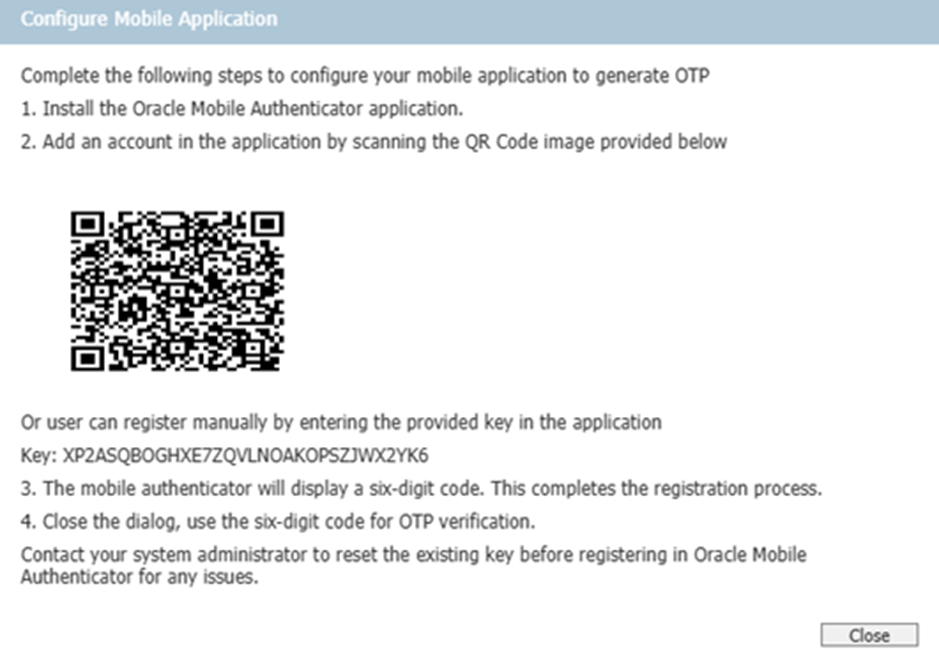
- Open the Mobile Authenticator app on the mobile device, then tap Add Account.
- Scan the QR code displayed on the Webmail screen to add the account.
Note: If a QR code is not available or not working, select Enter key manually, then follow the prompts and enter the required information. -
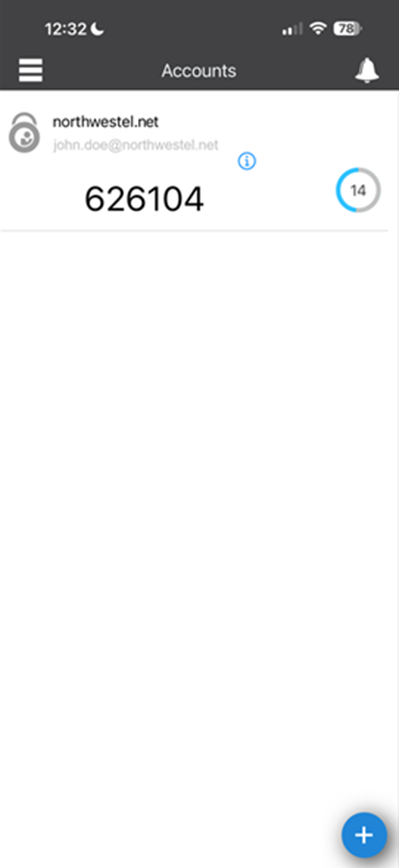
Once the setup is complete, you will see your email domain, your email address, and a 6‑digit OTP displayed
Option B: Secondary email address
You can choose to receive verification codes by email.
To use this method, you must add a secondary email address in Webmail:
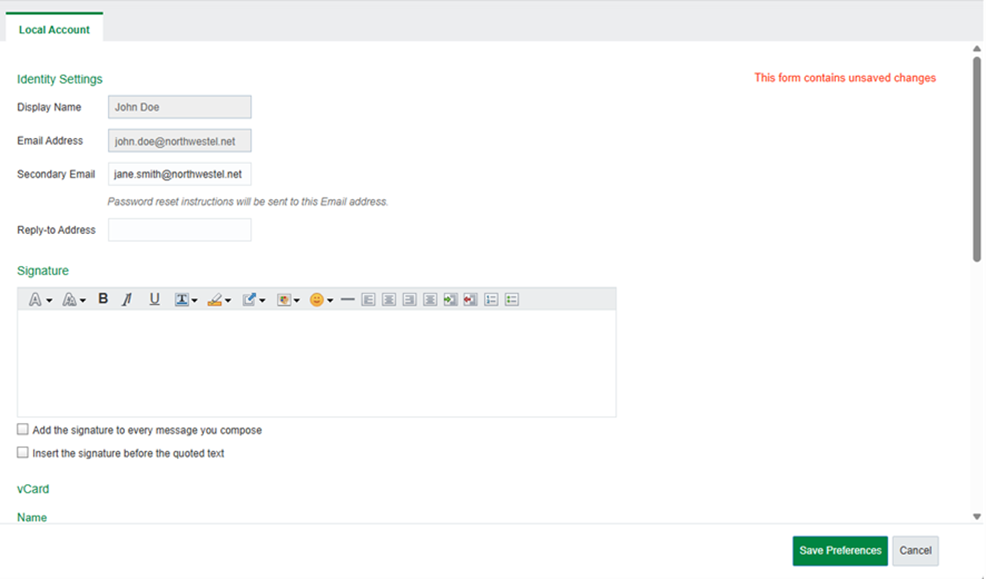
- Log in to Webmail.
- Go to Options (or Settings, depending on your layout).
- Navigate to Mail → Identities → Local Account.
- Enter your secondary email address.
- Select Save Preferences.
Option C: SMS
Because your mobile number is used as a secure authentication factor, users cannot update it themselves.
To add or change your mobile number, please contact our Support Team:1 (888) 423-2333
A support representative will update your number on your behalf.
How SMS MFA Works
When signing in, you can select SMS as your MFA method.
A verification code will be sent to your mobile number on file.
Enter the code to complete authentication.
Requirements
- You must have a mobile number registered to your account.
- If no mobile number is registered, selecting SMS will result in an error and no code will be sent.
Using MFA
Once MFA is activated and set up, you will be prompted for verification each time you log in. A drop‑down menu will appear where you can choose how to receive your verification code—either Email or Mobile Authenticator—and then select Send OTP.
• Email verification codes are valid for 60 seconds.
• Authenticator app codes are valid for 30 seconds.
If you lose access to your MFA method
If you lose the phone that contains your authenticator app or you lose access to your secondary email, contact us so we can either temporarily deactivate or reset your MFA.
Deactivation pauses the secondary verification but keeps your existing MFA settings intact.
Resetting removes all MFA settings, and you will need to complete the MFA setup again.
