Quarantined Emails
Managing Spam Notifications & Quarantined Emails
Northwestel uses Barracuda Email Gateway Defense (EGD) to protect your inbox from spam, phishing attempts, and other unwanted messages. When a message is identified as suspicious, it is placed in quarantine rather than delivered to your inbox.
This article explains how to access and review your quarantined messages and manage your quarantine settings.
What is the Spam Notification Folder?
The Spam Notification folder stores all quarantine notification messages so they don’t appear in your main inbox. From this folder, you can review each notification and manage any emails that have been quarantined.
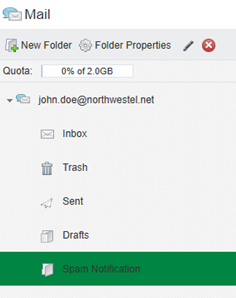
Notifications will have the subject line “Barracuda Networks Email Gateway Defense Quarantine Notification” and will be sent from Barracuda Networks quarantine@ess.barracuda.com

If you are using a third party email app on a mobile device or computer with POP3 settings, this folder will not appear due to POP3 limitations. To view the Spam Notification folder and access your quarantine alerts, you must sign in to webmail.
If you are using IMAP settings, the folder should appear in your email client, allowing you to view and manage notifications directly from there.
Note: The folder will become visible only after the first quarantine notification is received
Ways to Access Your Quarantine
You can access your quarantined messages in different ways:
1. Managing quarantined messages directly from the email notifications
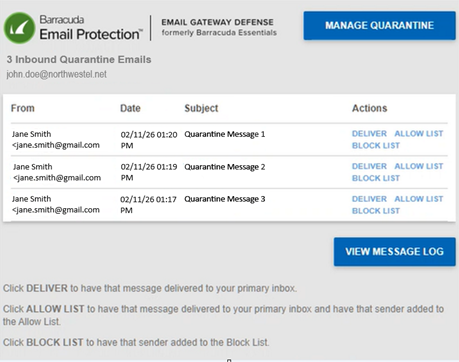
Barracuda sends periodic Quarantine Notification emails to your inbox summarizing any messages that were held.
Inside the notification, you can:
- Deliver: Send the message to your inbox
- Allow List: Deliver the message and trust the sender going forward
- Block List: Mark the sender as unwanted
2. Managing quarantined messages through Barracuda Web Portal or WebMail
Access Through the Barracuda Web Portal
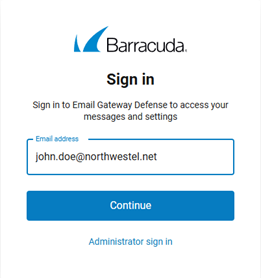
- Step 1: Go to the Barracuda Login Page
Visit: https://ca.ess.barracudanetworks.com/webui/login - Step 2: Sign In
Use your Northwestel Webmail username and password.
Access Through Northwestel Webmail (Convergence Panel)
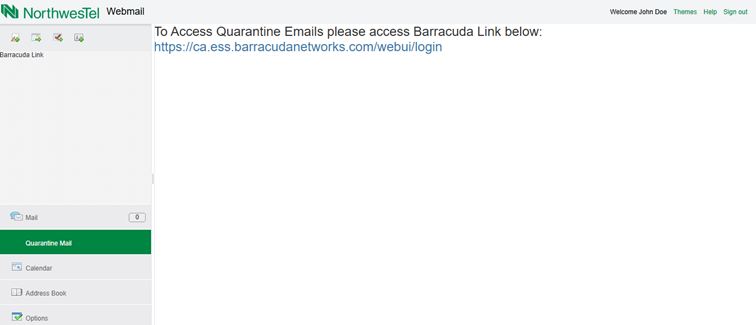
- Step 1: Log in to Webmail
Sign in using your Northwestel Webmail credentials.
- Step 2: Select “Quarantine Mails”
In the lefthand Convergence navigation panel, click Quarantine Mail.
This will redirect you to the Barracuda portal. Use your Northwestel Webmail username and password to sign in.
Managing Quarantined Messages
To take action on a message, select the checkbox beside it to display available options. You can:
- View all quarantined messages
- Deliver messages to your inbox
- Add senders to your Allow List or Block List
- Delete messages permanently
- Export the message log to CSV
- Filter by sender, subject, date, or reason for quarantine
Quarantine Notification Settings
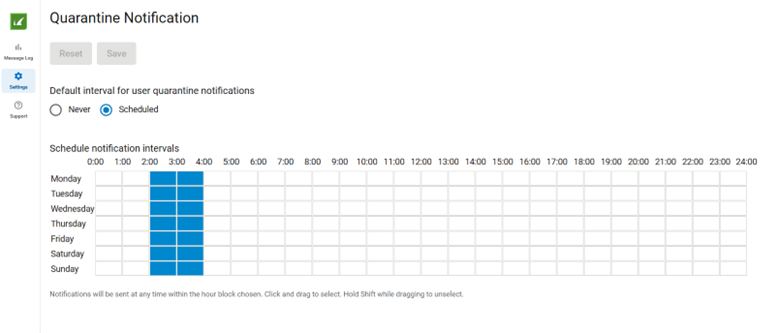
The global default timeframe for sending notification messages is 12–2 AM Yukon Standard Time. This schedule helps prevent users from receiving frequent quarantine notifications throughout the day. However, you can adjust this timing based on your personal preference. To update your notification schedule:
To update your notification schedule:
- Open the Barracuda portal.
- Select Settings from the sidebar.
- Choose Quarantine Notification.
- Select your preferred schedule (daily, weekly, or specific time blocks).
- Click Save.
A blue square indicates an active notification time. Click to toggle on or off.
Tips for Managing Quarantine
Check regularly: Any message placed in quarantine is retained for 30 days and then automatically deleted.
Use filters: The Message Log includes powerful search and filtering tools to help you find specific messages.
Need help? Select the Support icon in the Barracuda portal for access to Barracuda Campus documentation or contact us at 1-888-423-2333.r access to Barracuda Campus documentation.
