Forgot Password Guide
Before You Begin
To reset your password, you must have set up MultiFactor Authentication (MFA) for Northwestel Webmail using at least one of the following methods:
- A secondary email address
- A registered Mobile Authenticator app
These are required to verify your identity during the reset process. To learn more about setting up visit MultiFactor Authentication (MFA) for Northwestel Webmail.
What it is
If you forget your Northwestel Webmail password, you can reset it directly from the login page by selecting the Forgot Password option.
How to Reset Your Password
1. Open the Webmail Login Page
Open your web browser and navigate to https://webmail.northwestel.net/. On the login page, select the Forgot Password option.
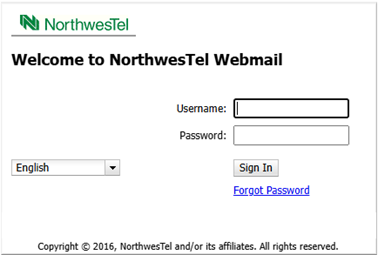
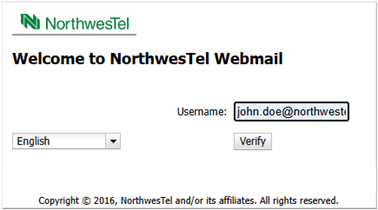
2. Enter Your Username
Enter your complete email address and click Verify to proceed
Choose Your Verification Method
Select your preferred option for where the OTP should be sent from the Send Verification Code drop‑down menu. Then click Send OTP or Next, depending on your selection.
NOTE: The Mail option is currently unavailable.
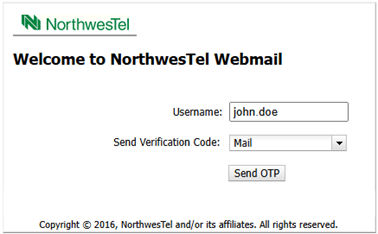
Option A: Email Verification - NOT currently available
• A One Time Password (OTP) will be sent to your secondary email address.
• Email OTPs are valid for 60 seconds.
Option B: Mobile Authenticator (OMA)
• If you have registered the Oracle Mobile Authenticator app, your OTP will appear directly in the app.
• Authenticator OTPs are valid for 30 seconds.
Enter the OTP
Check your chosen verification method (email or authenticator app) and enter the OTP within its validity period. If it expires, you can request a new one.
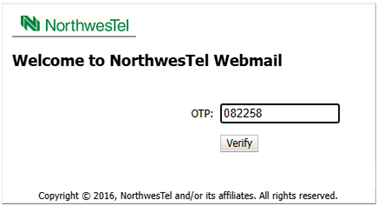
Create a New Password
Once your OTP is verified:
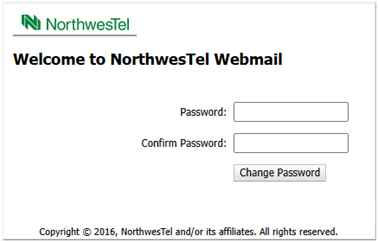
1. You’ll be redirected to the Create New Password page.
2. Enter a new password that meets the required password policy.
3. Select Change Password to finalize the process.
Your password is now updated, and you can log in with your new credentials.
Additional Tips
- After changing your password, if you use a third‑party email application, make sure to update your password in that app as well so you can continue sending and receiving messages.
- If using the Mobile Authenticator, ensure your phone’s date and time settings are correct so OTPs generate properly.
- Ensure your MFA setup is completed, whether through the mobile authenticator or a secondary email, so you can successfully complete the password change.
Before You Begin
If you experience issues such as:
- Not receiving OTP emails
- OTPs expiring repeatedly
- No access to your secondary email or authenticator
Contact us at 1-888-423-2333
