How to login and update your customized home screen banner
- Learn how to login and change your password specifically for updating your Hospitality IPTV Home Screen Banner.
- Learn image requirements and how to upload files to show up on your TV screen.
When you purchase the Customized Home Screen Banner feature, an account will be created for you and an automated email will be sent, prompting you to update your password.

We recommend saving the login link as one of your favorites, but you can always login to your account here:
https://www.nwtel.ca/hospitality-tv
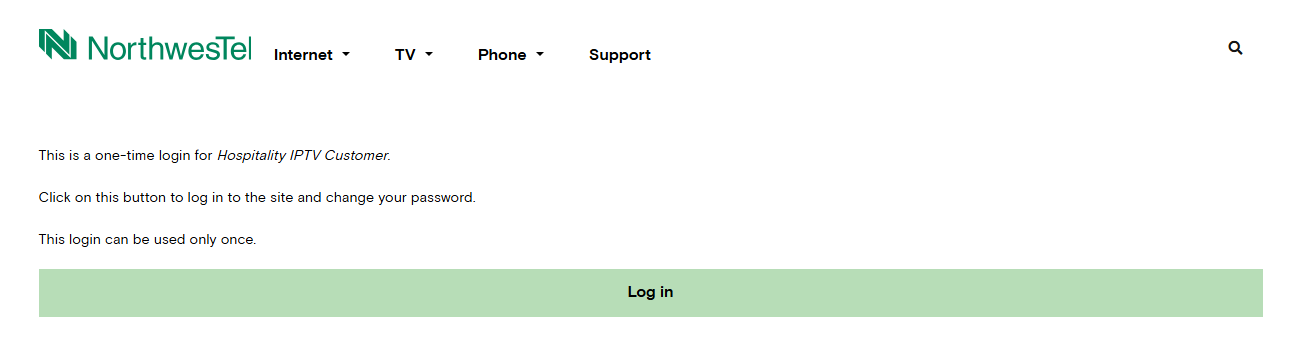
When you select the one-time link from your email a Northwestel page will appear. Select ‘Log In’.
Once logged in, you will be prompted to set a new password.
Your password must:
- Contain at least 4 types of characters from the following types:
- lowercase letters, uppercase letters, digits, special characters
- Contain at least 1 uppercase character
- Contain at least 1 special character and
- Be at least 12 characters in length
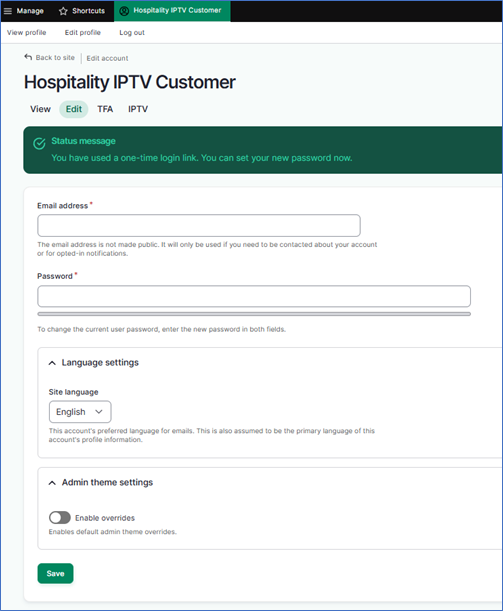
At the bottom of the page, make sure to select ‘Save’!
Once your new password is set, select ‘back to site’ at the top of the page.
If you have forgotten your username and/or password, select ‘Reset password’.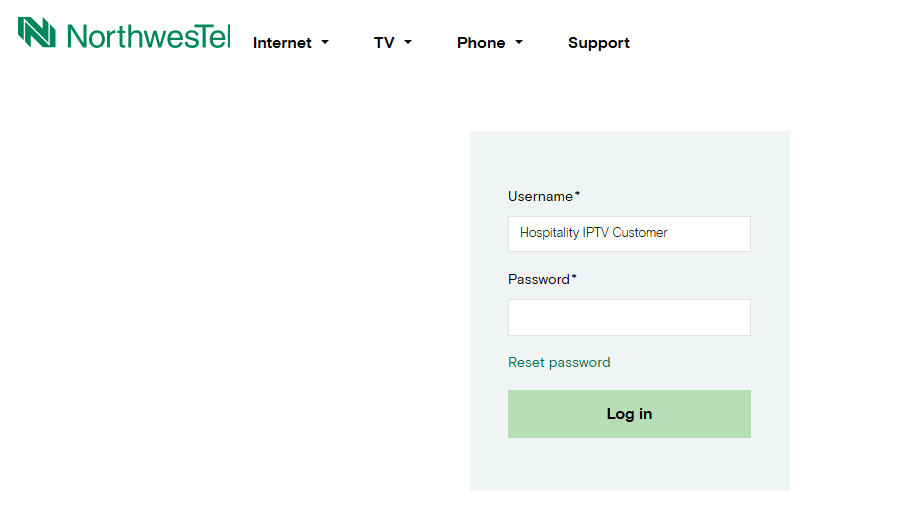
Enter the email address associated with the account, and a password reset email will be sent. If the email address is correctly linked to the account, an email with instructions will be sent to reset the password. 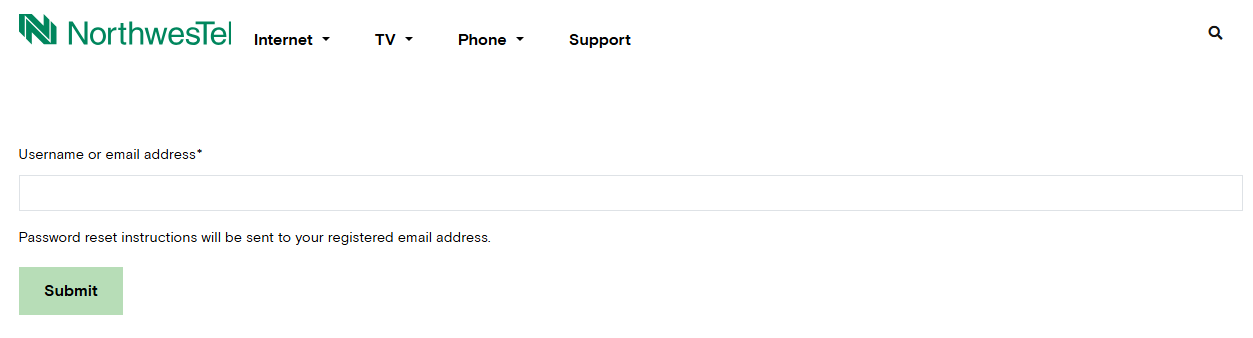

Follow the link in your email to get you back into your account and select ‘Log in’. Remember to check your spam folder if you don’t see the email right away.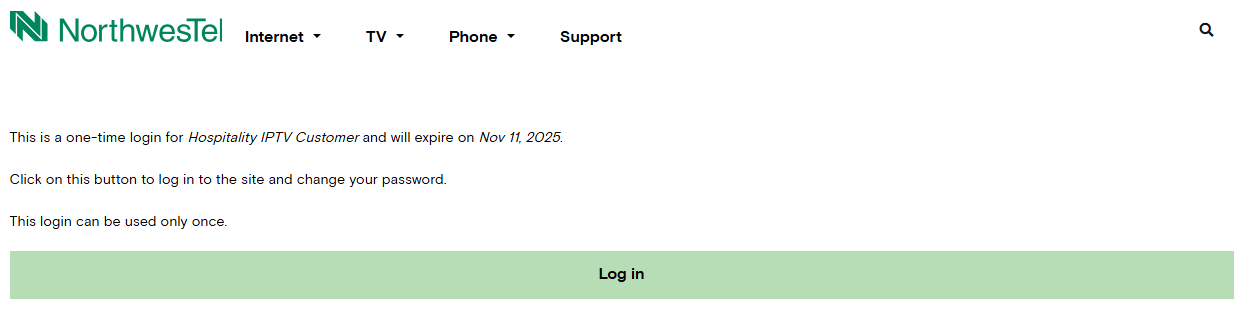
Once logged in, you will be prompted to set a new password.
Your password must:
- Contain at least 4 types of characters from the following types:
- lowercase letters, uppercase letters, digits, special characters
- Contain at least 1 uppercase character
- Contain at least 1 special character and
- Be at least 12 characters in length
At the bottom of the page, make sure to select ‘Save’!
Once your new password is set, select ‘back to site’ at the top of the page.
Use the below steps to upload your images to your TV home screen. You can upload a maximum of five unique images. Each image appears on screen for 20 seconds before rotating.
Steps:
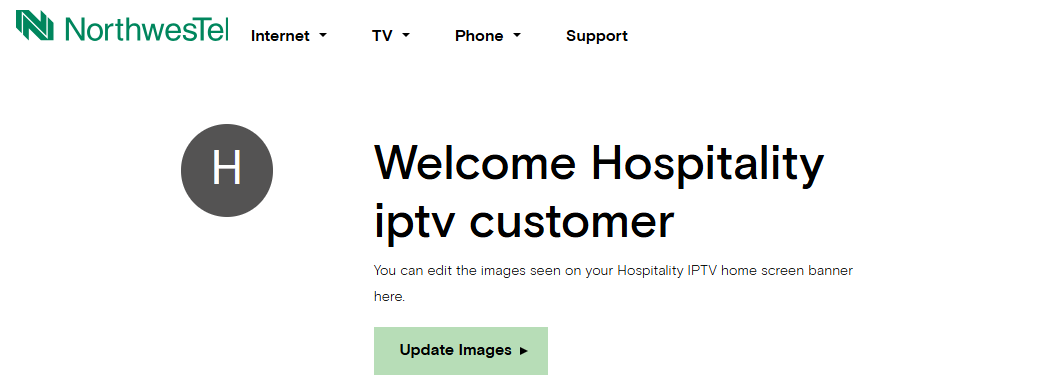
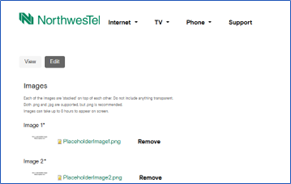
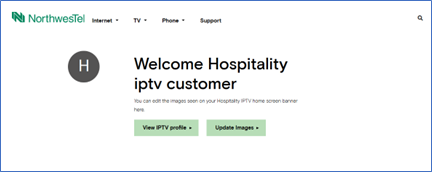
- Login to the Customized Home Screen Banner portal on https://www.nwtel.ca/hospitality-tv and select ‘Update Images’.
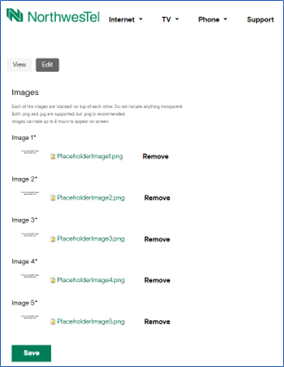
- If this is your first time logging in, you will see five placeholder images pre-loaded. Remove these images and upload your own. Remember to press ‘Save’ at the bottom of the page to keep your changes. If you navigate away from the page without pressing ‘Save’, no changes will be made to your account.
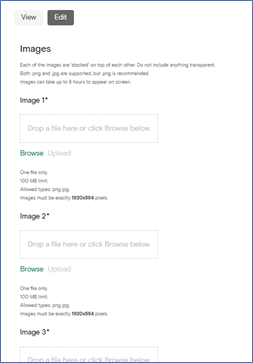
-
To preview how your images will look on a TV screen, select 'View' at the top of the edit page or 'View IPTV profile' from the account login page.
The image viewer carousels through your five images and will show you how your images will appear on screen.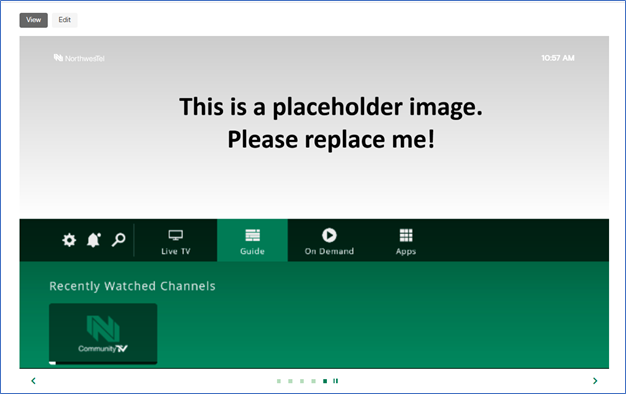
Please Note:
- You must always have all five image spots filled before you can save. If you do not have five unique images, the same image(s) can be loaded into each image slot.
- The file must be a .png image.
- Your image file must not exceed 100MB.
- Your image file must be in the following dimensions: 1920 pixels (width) x 594 pixels (height).
- If your image needs to be resized, a free image resize tool using a Google search can be used. Examples are:
- If you want to make sure the main part of your image is still seen on screen when a user scrolls down (as the image is minimized), you can keep in mind that the banner is minimized to 1920 x 308. To have the main subject always remain visible, images should be created with 143-pixel margins at the top and bottom of the image.
- Keep in mind that there will always be a logo in the top left corner of the image and a clock at the top right corner.
- Please do not include any transparent sections in your images. Behind the scenes, all your images are stacked on top of each other and will show through to the next one if you include transparent pieces.
- It can take up to 8 hours for your images to be seen on your TV screen. It is best to plan for overnight updates!
- Login at any time to replace all or one of your images!
